Step-by-step guide
How to Start with Passeo
Follow these steps to set up your club and run your first session.
Start Simple
You do not need to set up everything perfectly on day one.
Most clubs begin with:
- One session
- A few members
- Simple manual check-ins
Passeo is designed to help clubs gradually move away from paper
cards and manual attendance tracking.
Step 1
Create Your Club
Instructions:
- Open Passeo
- Tap "Create a Club"
-
Enter your name and club name, then tap Create Club
Important notes:
- You automatically become the club owner
-
Owners can manage the club and promote hosts later
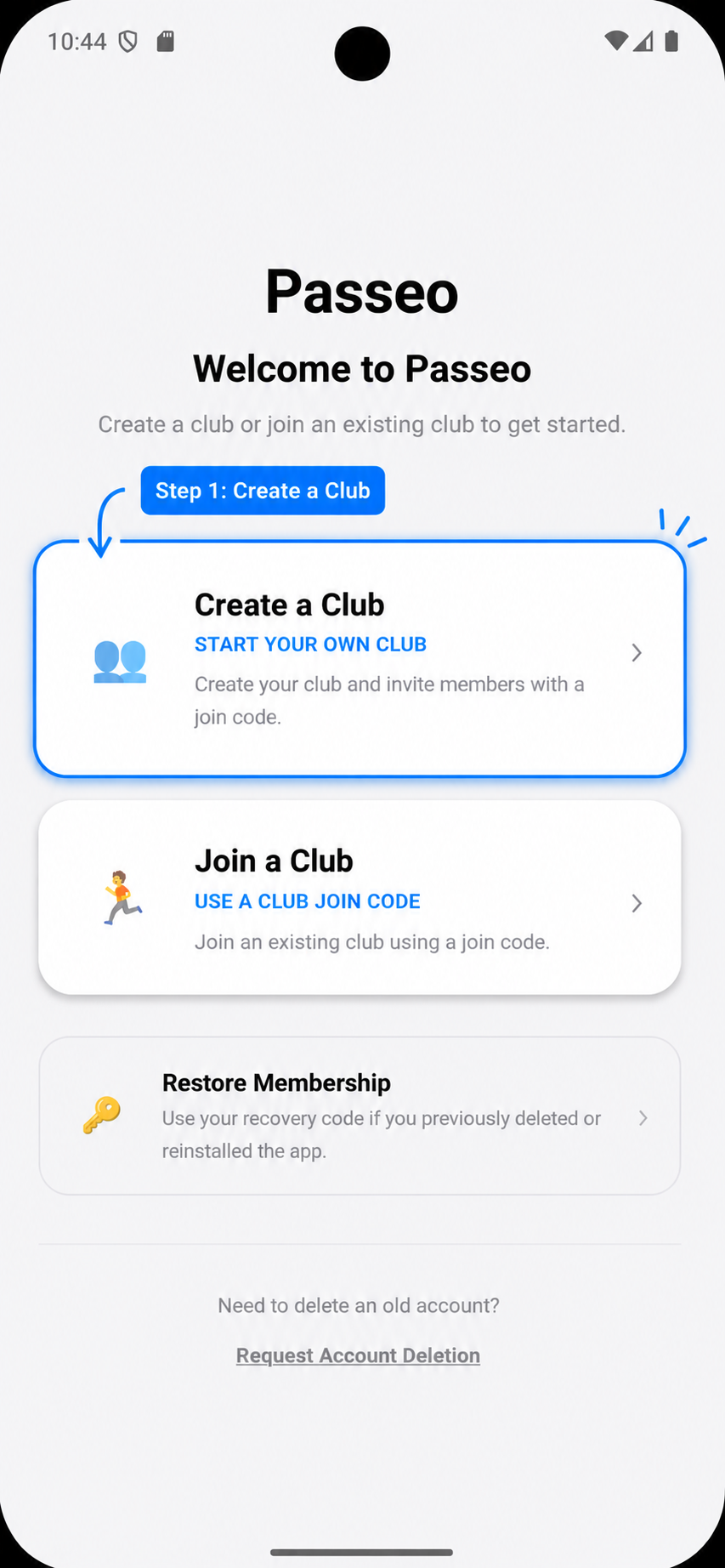
Tap Create a Club on the welcome screen.
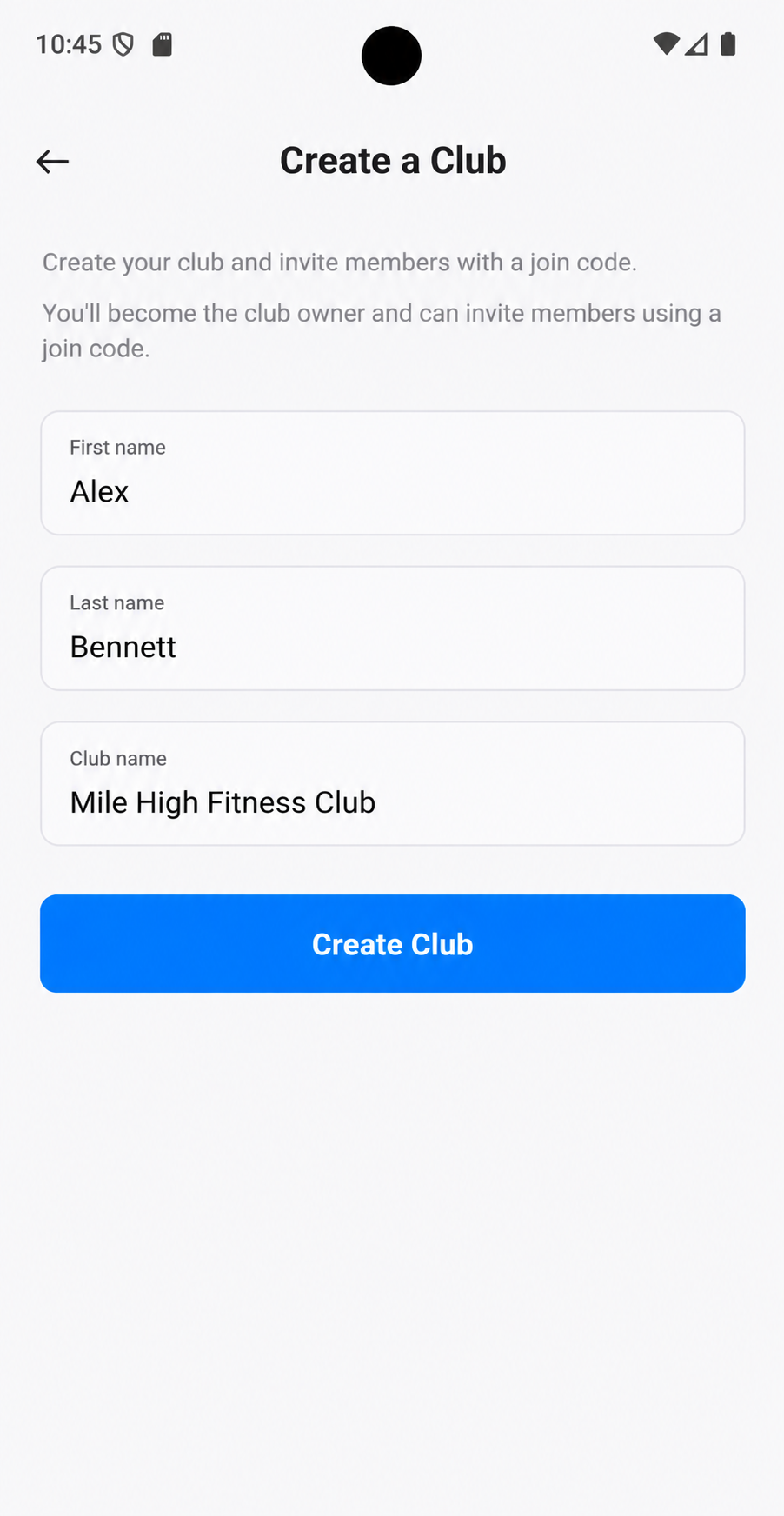
Enter your name and club name, then tap Create Club.
Step 2
Add Members
Hosts can add members directly from the Home screen. Members do
not need to install the app before your club starts using
Passeo.
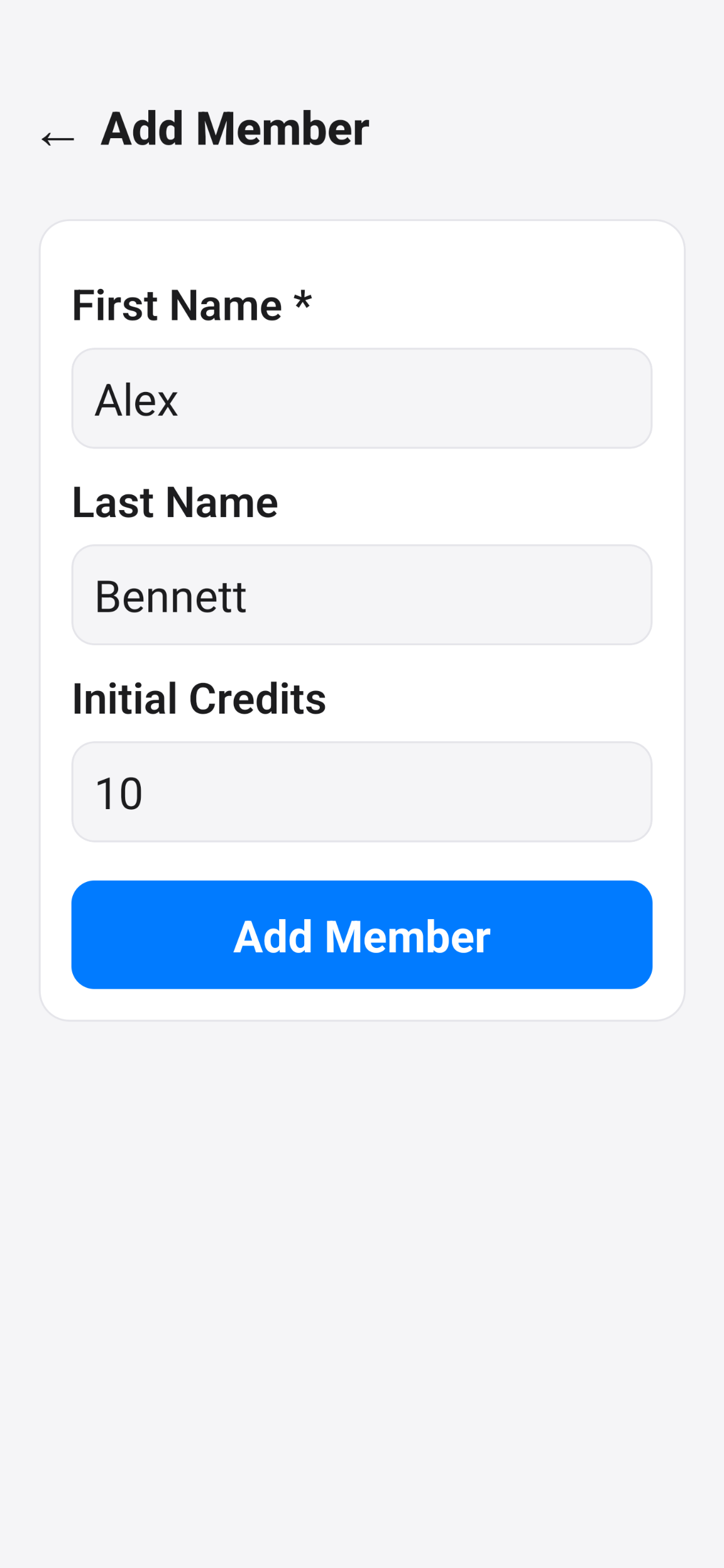
Add members directly from the Home screen.
Add members quickly
Enter a member's name and optional starting credits, then
tap Add Member.
- Use Web Check-In after members are added
- Hosts can check members in manually
- Members can install Passeo and join later
- Fast setup for clubs just getting started
Recovery Codes:
When a member is added to the club, Passeo generates a
recovery code.
- Web Check-In
- Credit lookup
- Account recovery
- Accessing membership on a new device
Club owners and hosts should help members save their recovery
codes. Recovery codes can be viewed and shared from the Manage
Members screen.
Tip:
Many clubs start by adding members first, sharing recovery
codes, and using Web Check-In before asking members to install
the app.
Step 3
Create Your First Session
Sessions are where members check in and attendance is tracked.
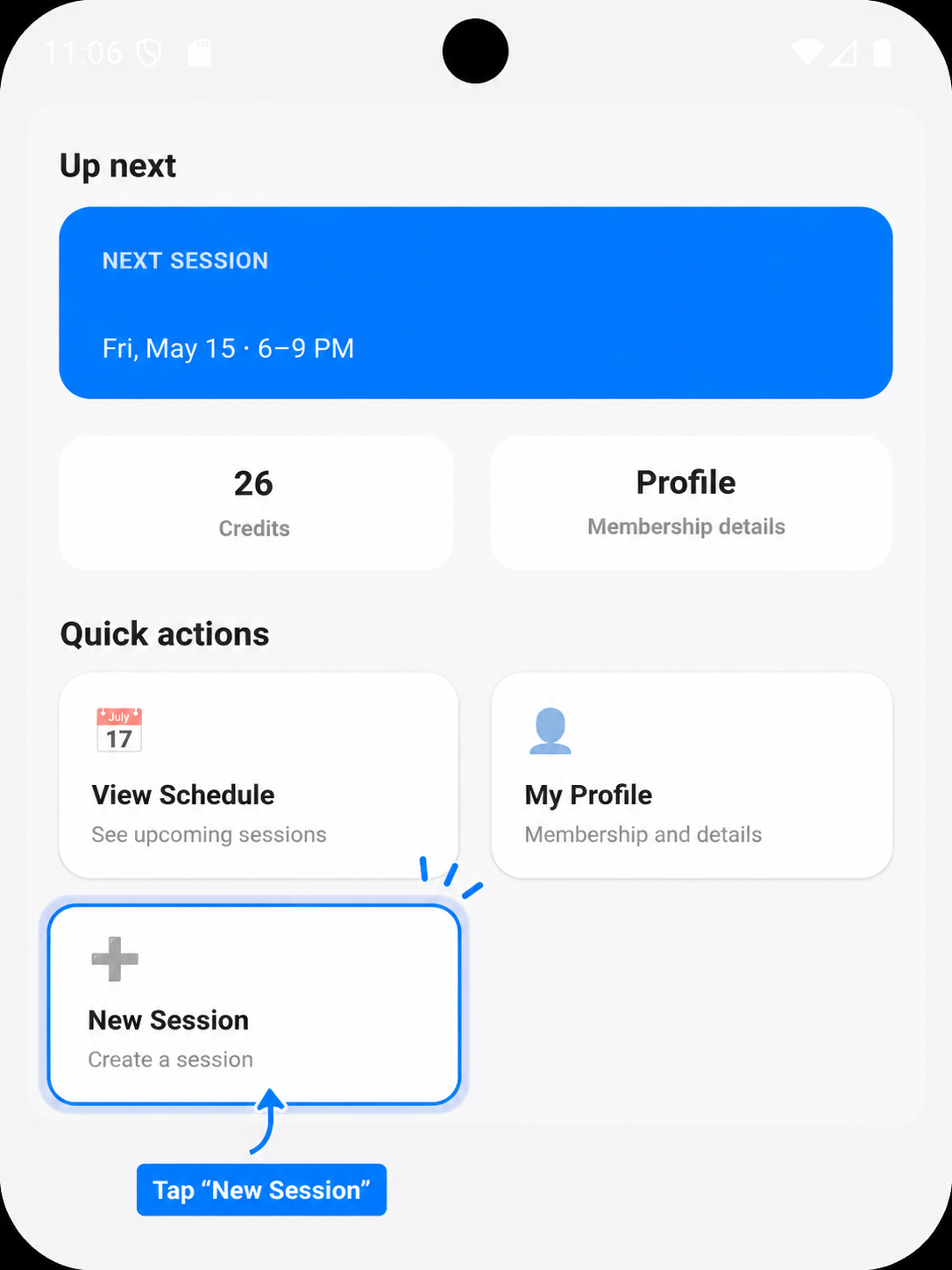
Tap "New Session" from the Home screen.
Tap New Session
From the Home screen, tap "New Session" under Quick actions.
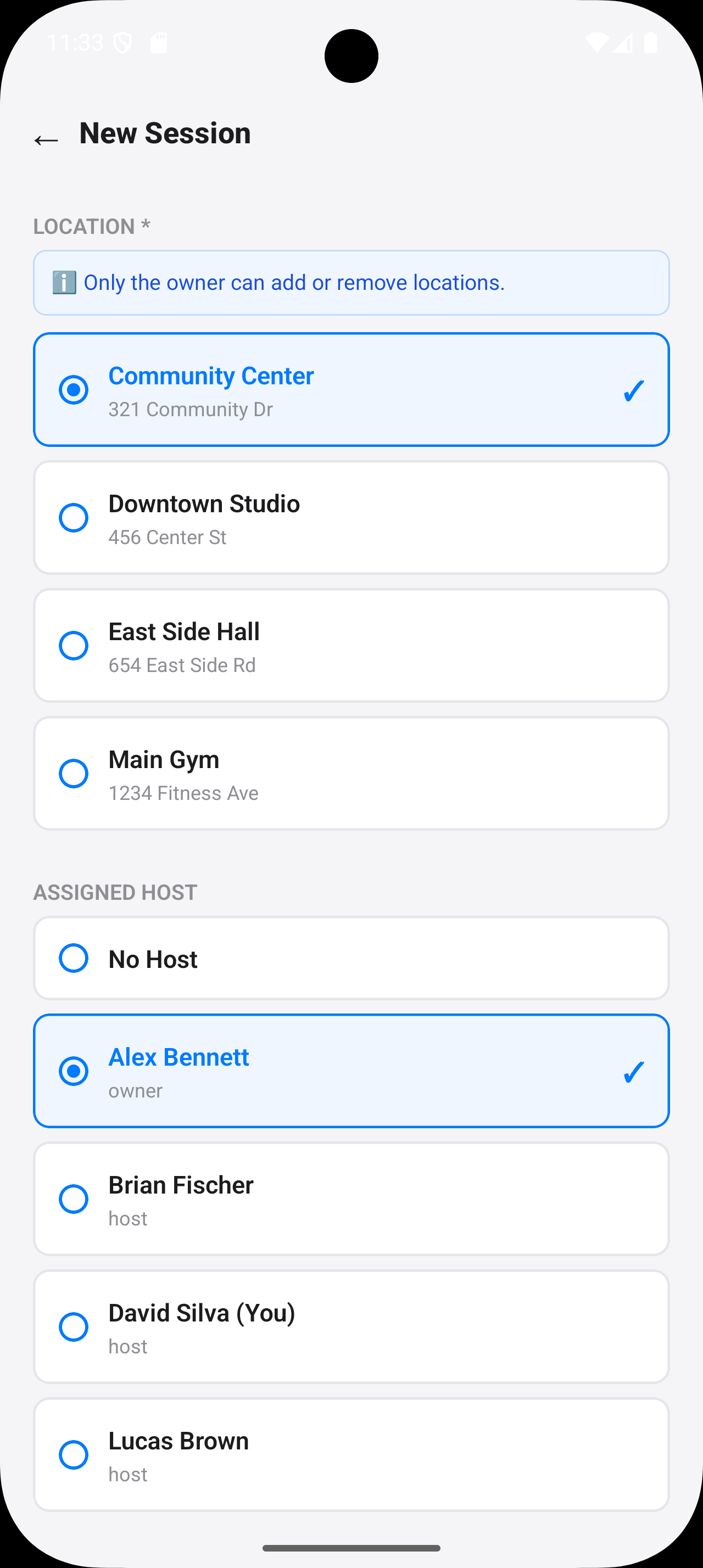
Choose a location and optionally assign a host.
Choose location and host
Select where the session will take place and optionally
assign a host.
- Choose a location for the session
- Hosts can help manage check-ins
- You can leave "No Host" selected
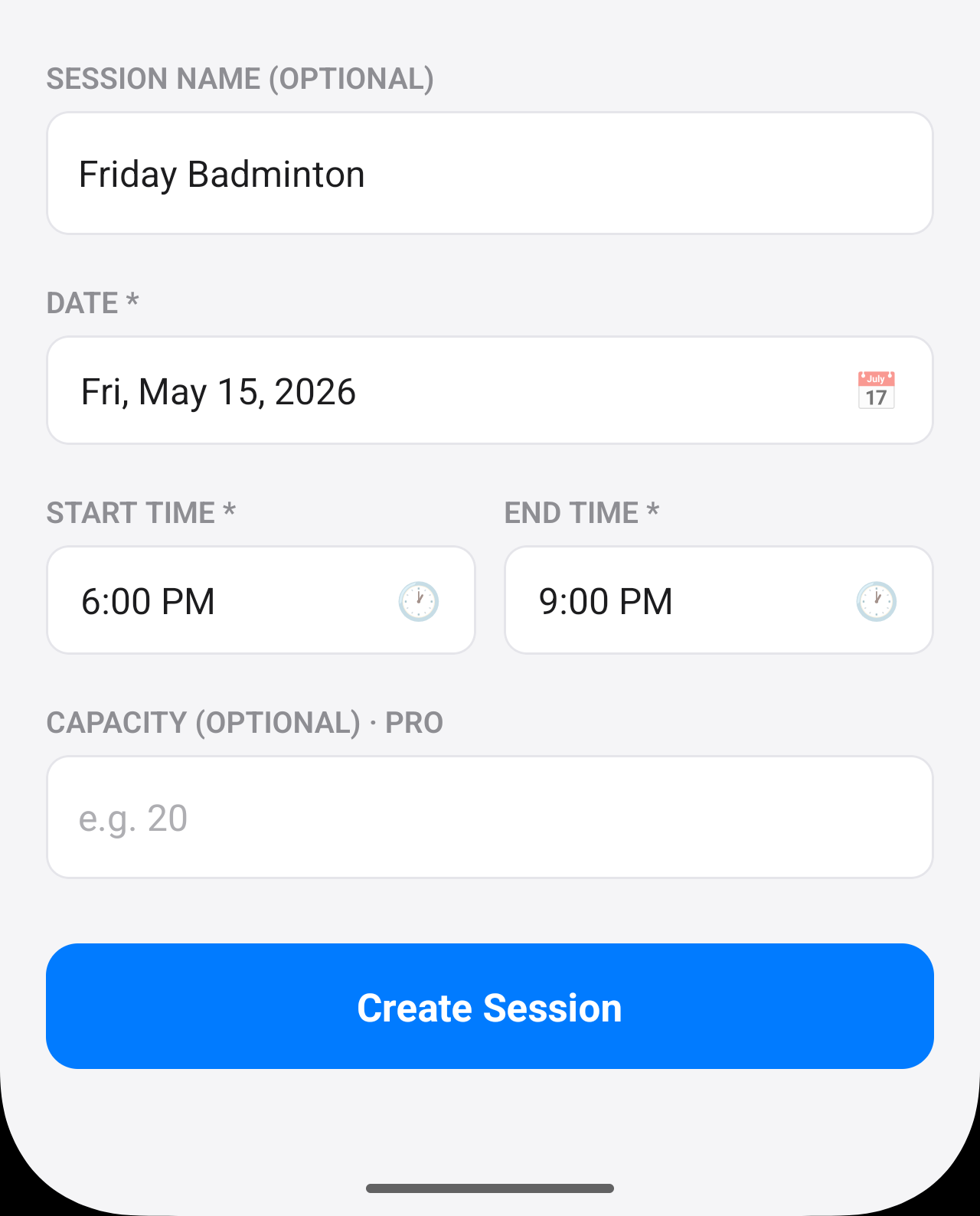
Enter the session details, then tap Create Session.
Add session details
Enter the session name, date, start time, and end time, then
tap "Create Session."
- Session name is optional
- Choose the session date and time
- Tap "Create Session" when finished
Step 4
Club Info & Web Check-In QR Code
The Club Info page contains your Club Join Code, optional
payment information, and the Web Check-In QR code.
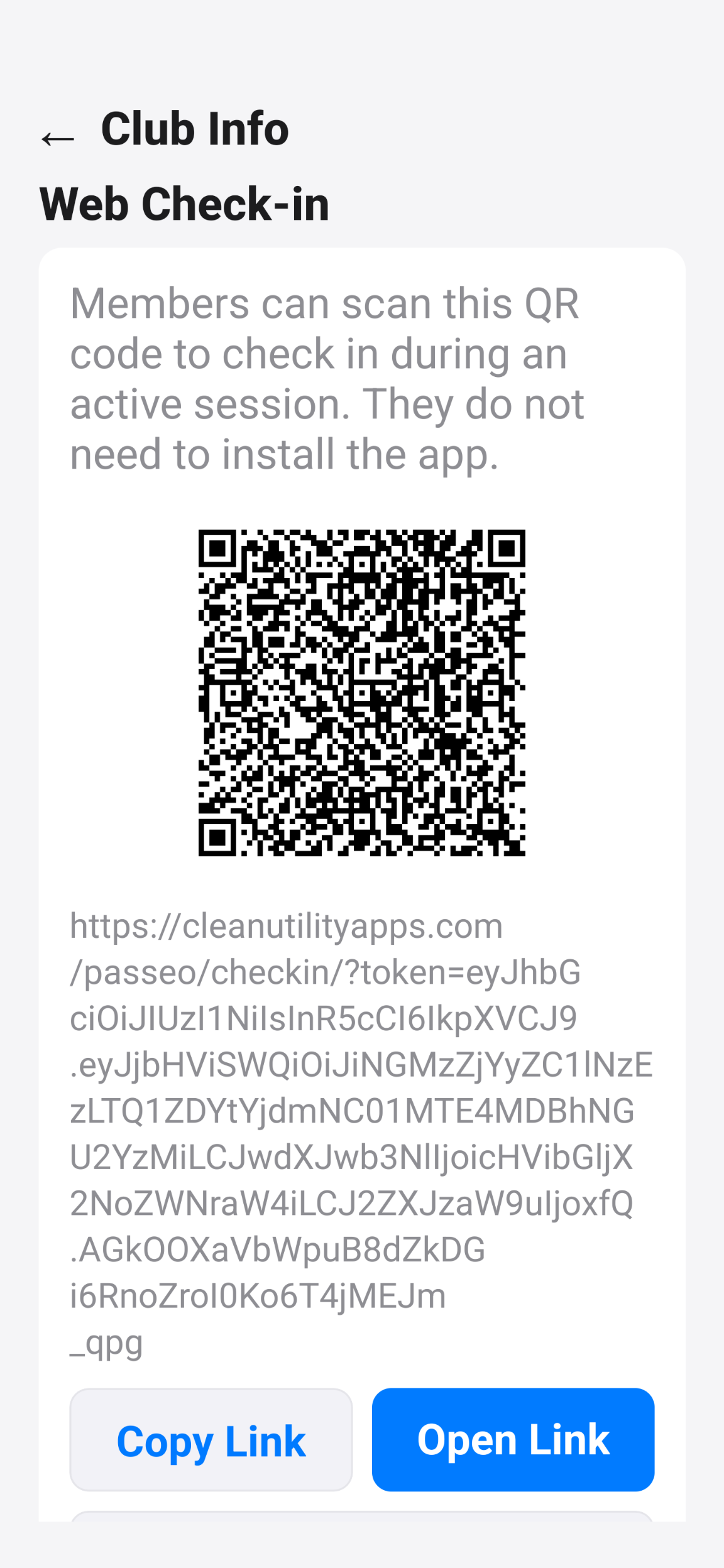
Open Club Info to access the Web Check-In QR code.
Display the QR code
Instructions:
- Open Club Info.
- Locate the Web Check-In QR code.
- Display it on a phone or tablet.
- Print it for use at the venue if desired.
-
Share the Web Check-In link with members if desired.
Flexible usage:
Members can open Web Check-In either by scanning the QR code
or by opening the shared link directly.
Important:
The Web Check-In QR code is automatically available for every
club. No setup or configuration is required.
Step 5
Member Web Check-In
Members can check in from their phone browser without installing
the app.
Session-based availability:
Web Check-In is session-based. Members can only complete
check-in when a session exists and is currently accepting
check-ins. If no active session is available, members cannot
check in.
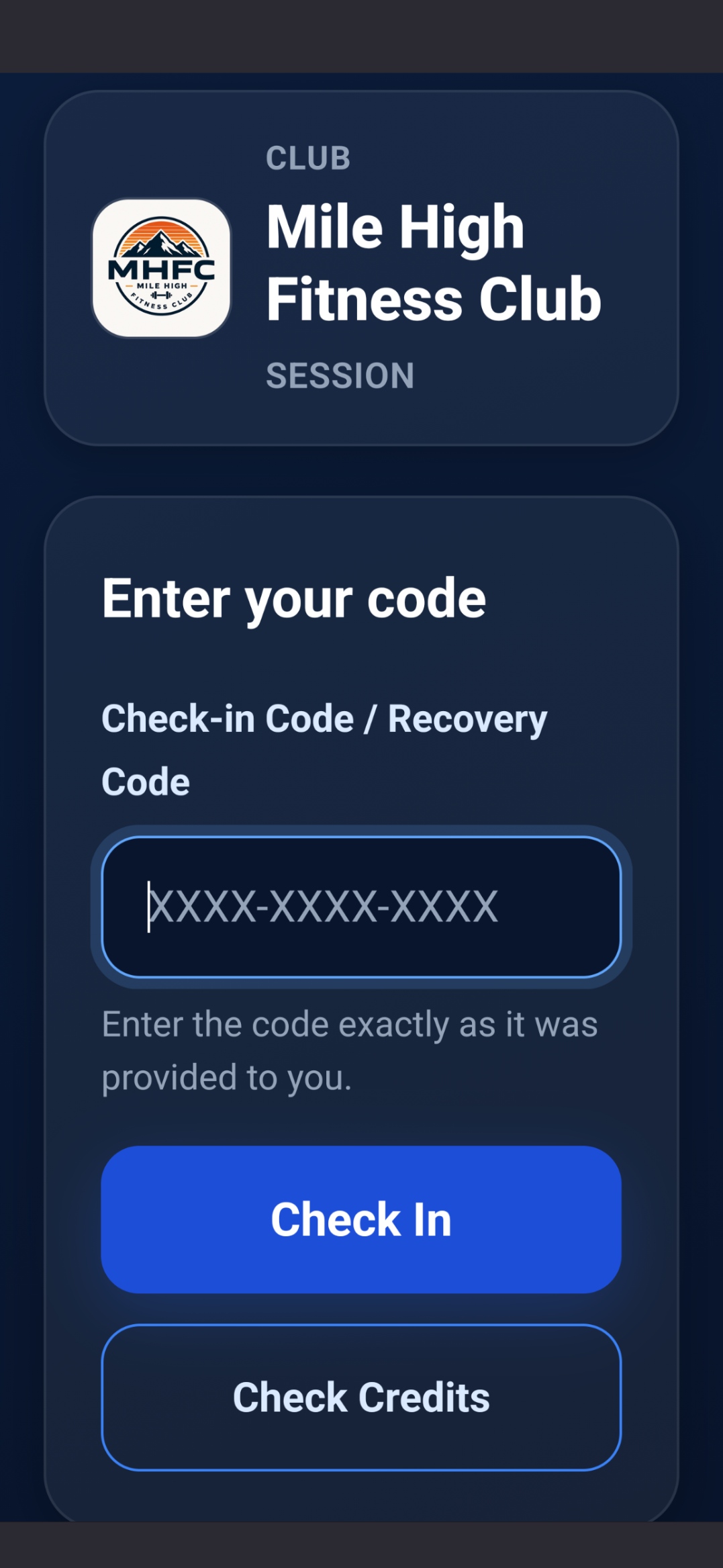
Members enter their recovery code to check in or view
remaining credits.
Requirements
- The member must already exist in the club
- The member must have a recovery code
- A session must be available for check-in
Instructions:
-
Scan the QR code or open the shared Web Check-In link.
- Enter the recovery code.
- Tap Check In when a session is available.
- Tap Check Credits to view remaining credits.
Benefits
- No app required
- Fast onboarding
- Credit lookup from any browser
- Easy transition from paper punch cards
- Reduced workload for hosts
Step 6
Optional: Install Passeo & Join the Club
Installing Passeo is optional. Many clubs begin with
host-managed members and Web Check-In, then gradually encourage
members to install Passeo later.
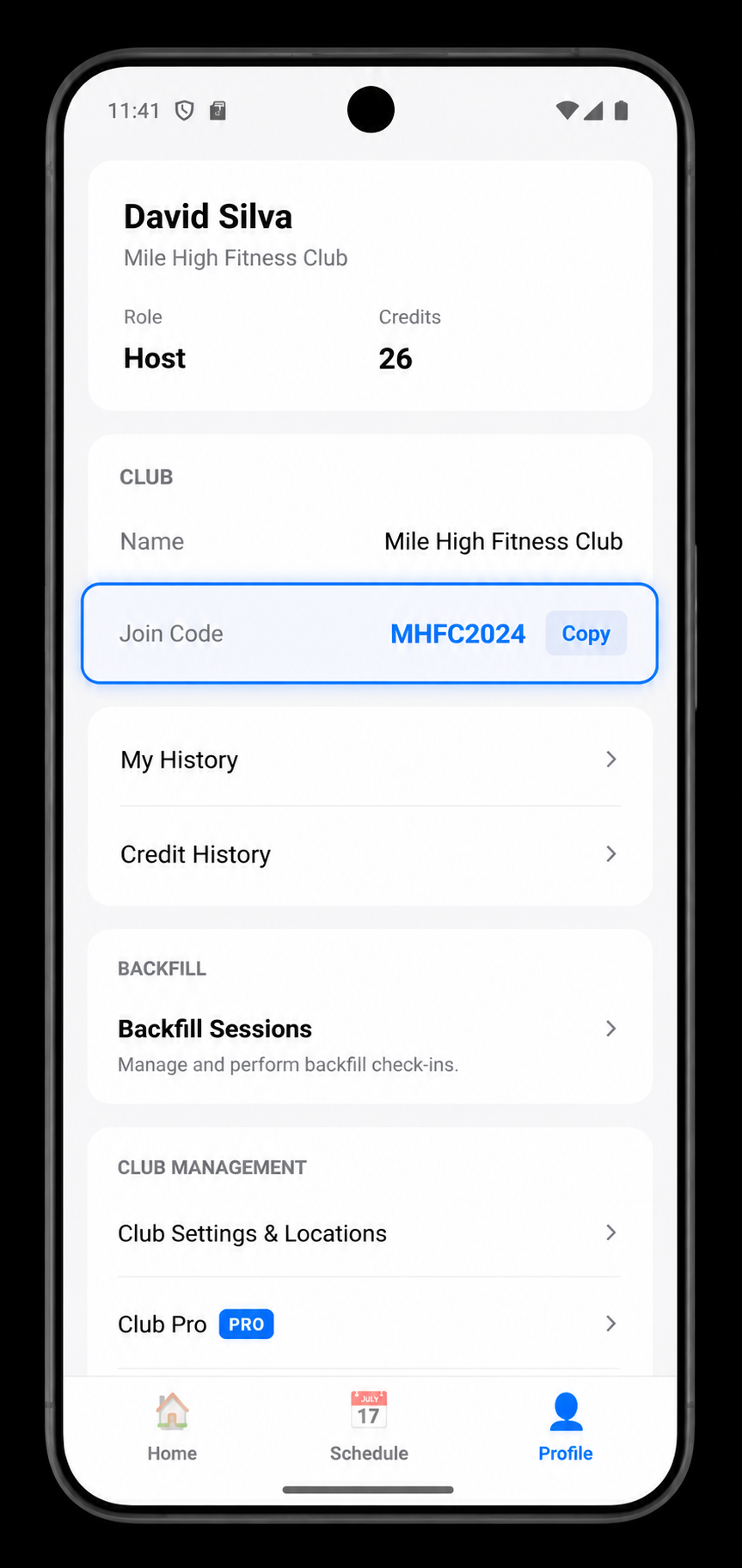
Find your club join code in Profile.
Find your club join code
Open Profile to find your club join code and share it with
members who want to install Passeo.
- Share the join code with members
- Members can join by themselves
- Great for gradual adoption
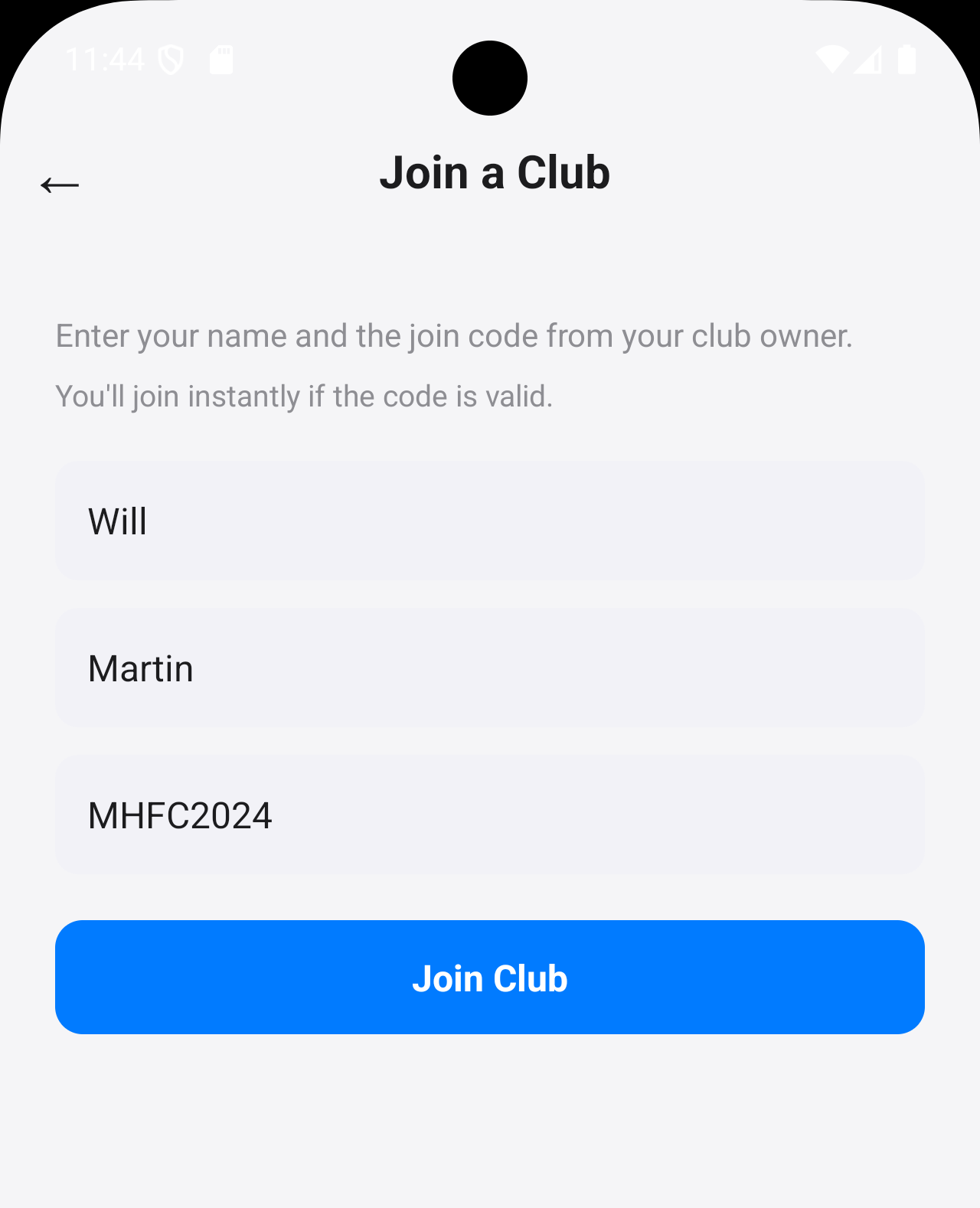
Members enter the join code to join the club.
Members join using the code
Members open Passeo, tap "Join a Club", and enter the join
code.
- View upcoming sessions
- Mark themselves as Going
- Check themselves in through the app
- View attendance history and club information
Note:
After members join, the club owner can promote members to
hosts if needed.
Step 7
Manage Members
Manage member roles, credits, and club permissions from the
Manage Members screen.
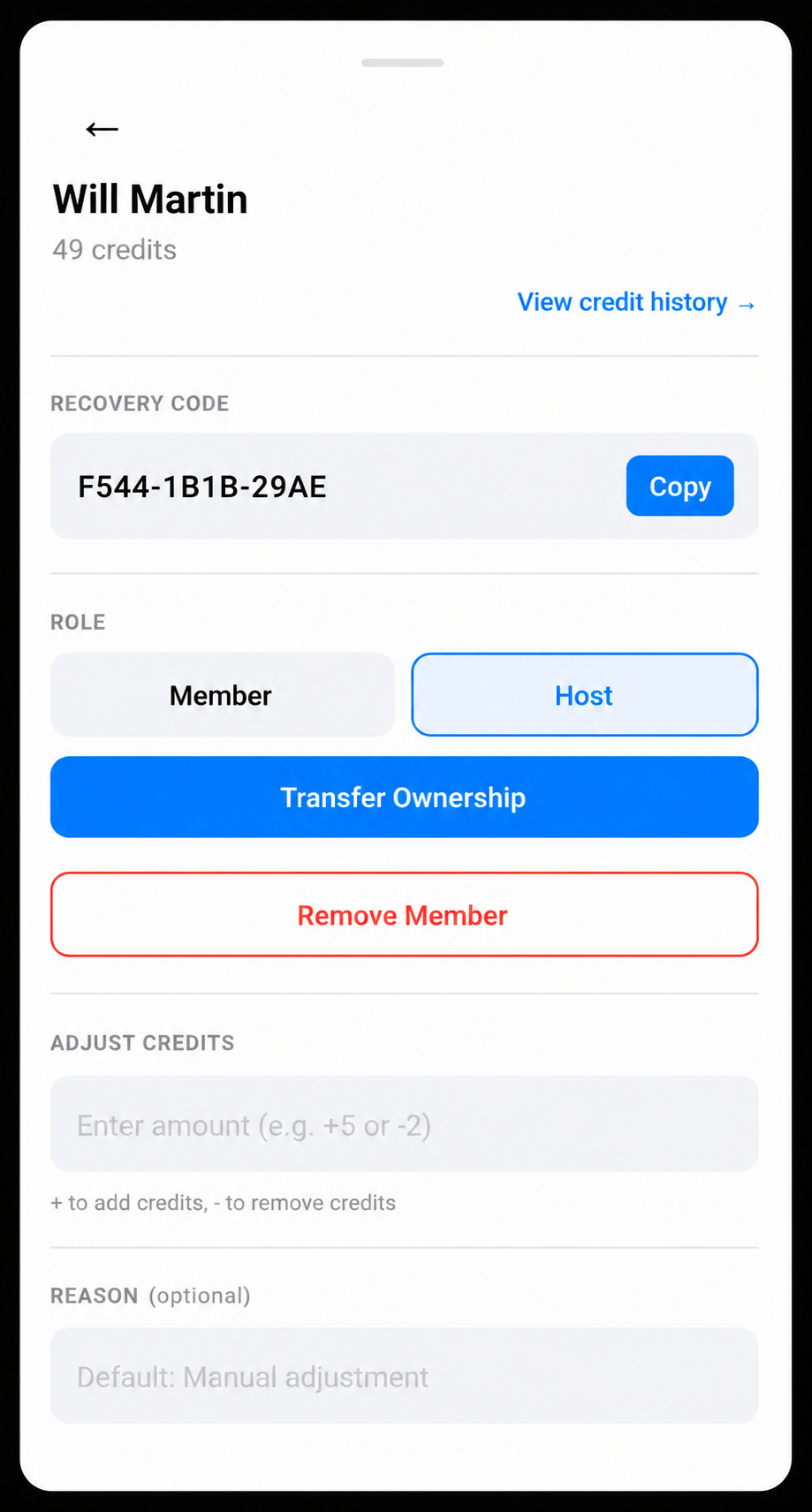
Manage member permissions and credits.
Manage member roles and credits
Open Profile → Manage Members → Select a member to manage
their role and credits.
- Promote members to hosts
- Adjust member credits
- Remove members from the club
- Transfer ownership if needed
Important:
Only the club owner can promote members to hosts.
Step 8
See Who's Going
Members can mark themselves as "Going" before a session starts.
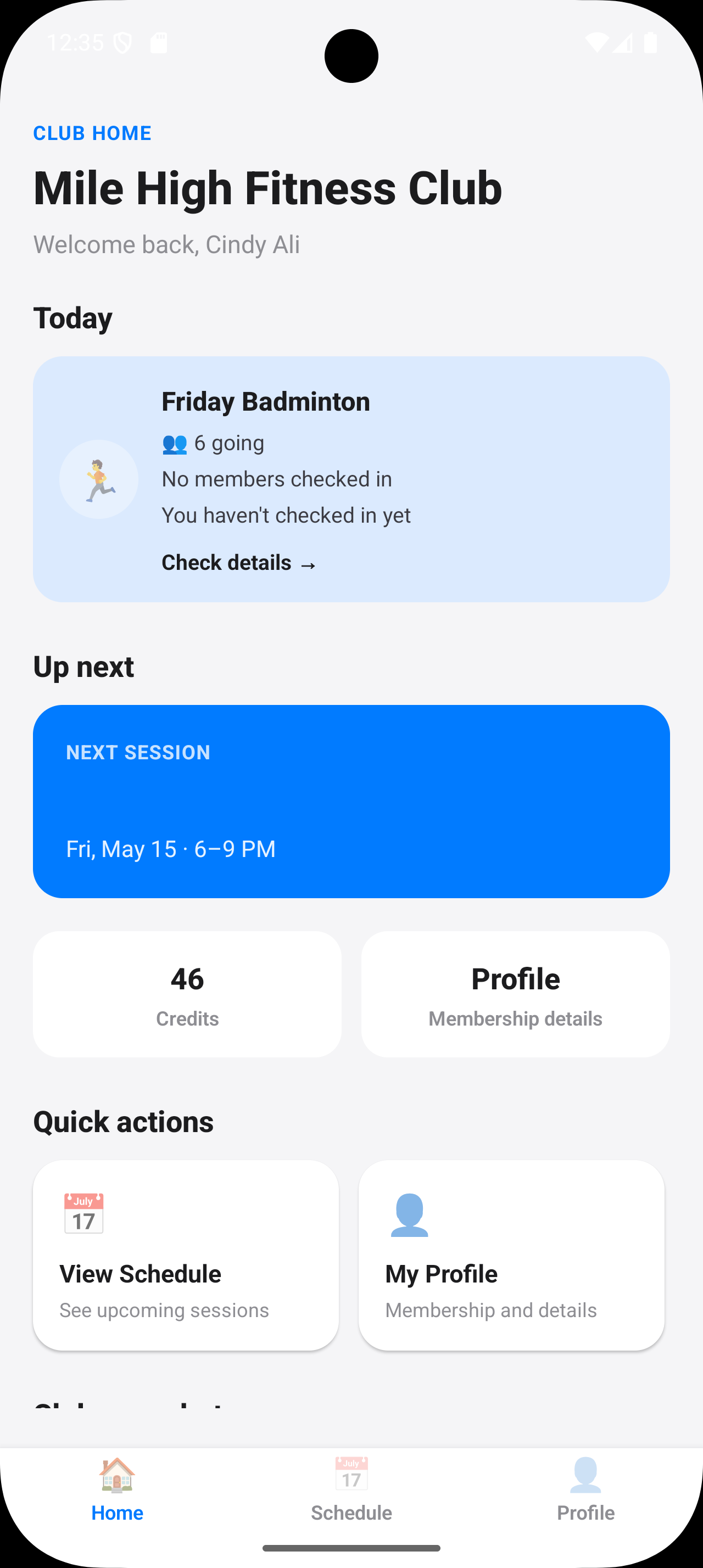
See how many members are going from the Home screen.
See attendance from the Home screen
The Home screen shows how many members are planning to
attend today's session.
- Quickly estimate attendance
- View session activity at a glance
- Useful before check-in begins
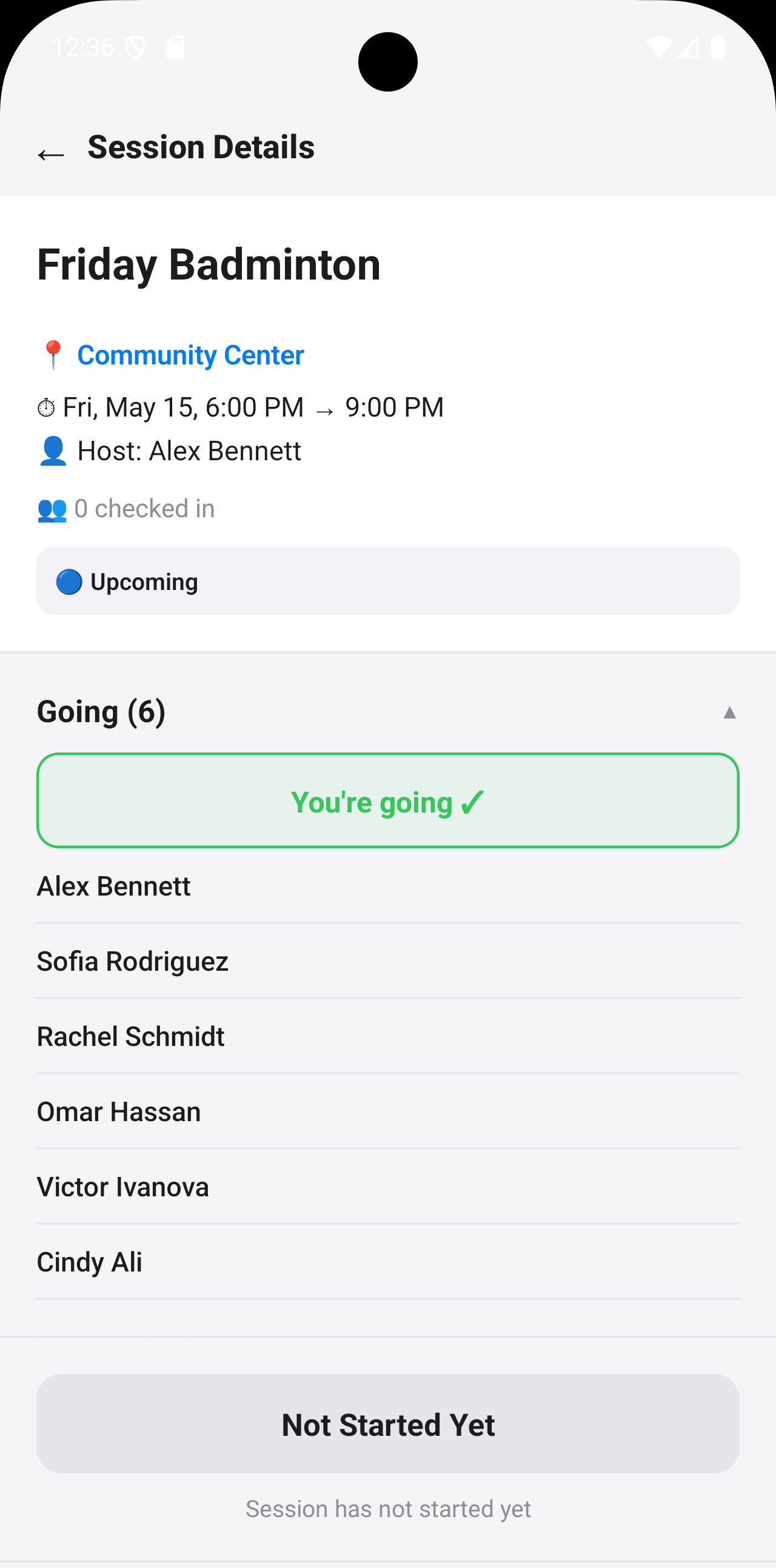
View the full list of members who are going.
View who is going
Open Session Details to see which members are planning to
attend.
- Members manage their own status
- View expected attendees
- Plan ahead before the session starts
Step 9
App Self Check-In
Members who install Passeo can check themselves in directly from
the app when a session becomes available.
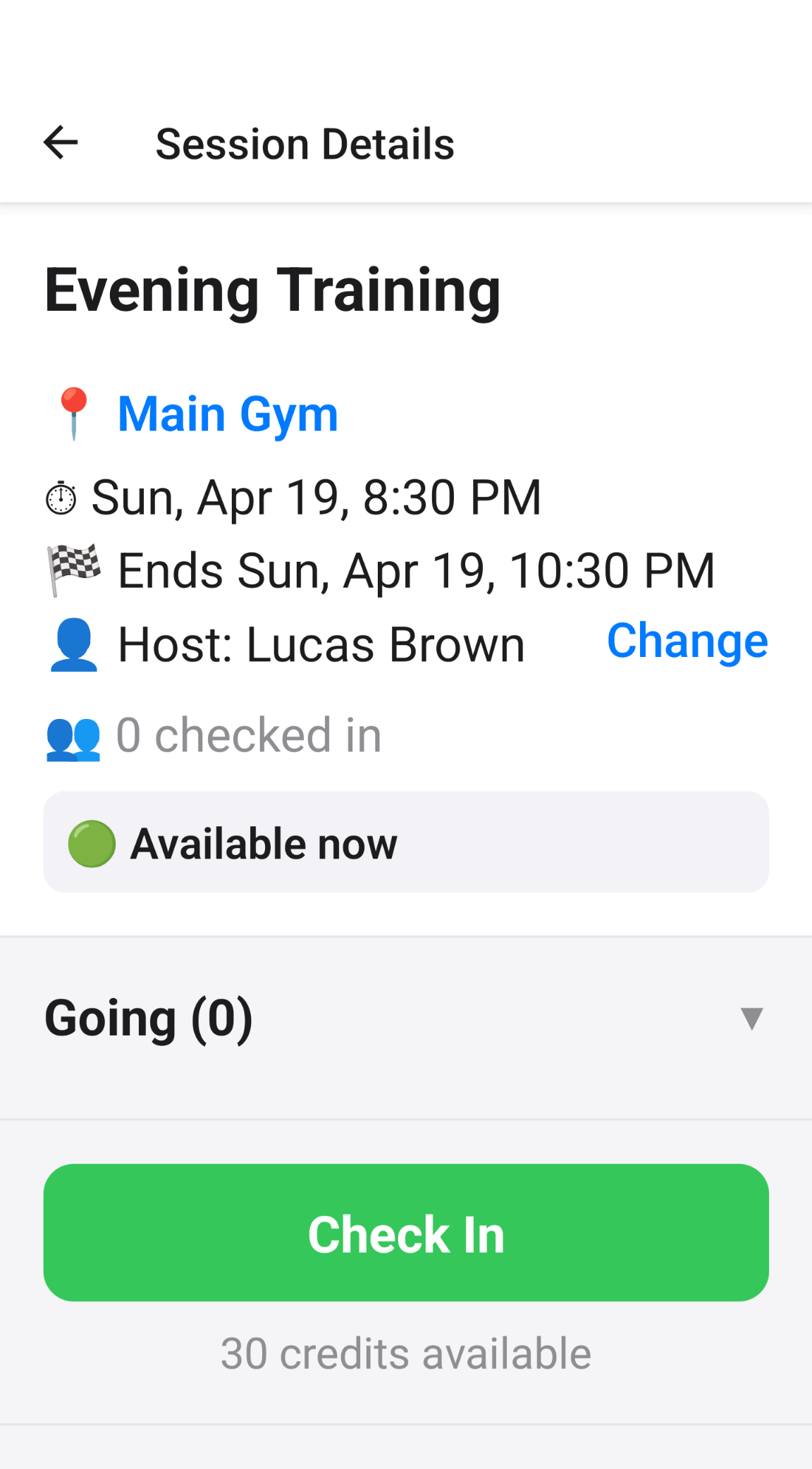
Open a session and tap Check In.
Open the session
Open a session, review the details, and tap the green "Check
In" button when the session is available.
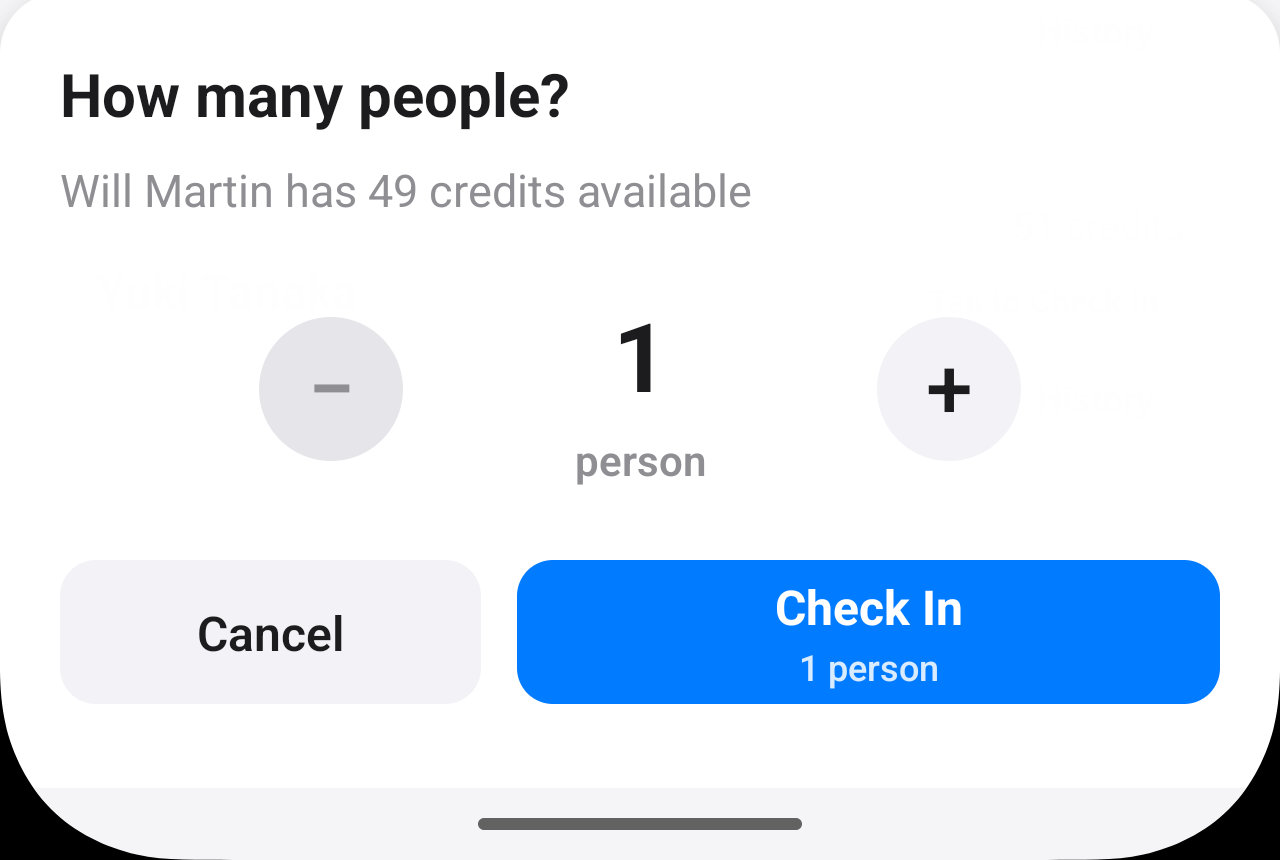
Select people and confirm check-in.
Choose people and confirm
Choose how many people to check in, then confirm. Credits
are deducted automatically after check-in.
Step 10
Host Check-In
Hosts can manually check in members or guests and review
available credits before confirming.
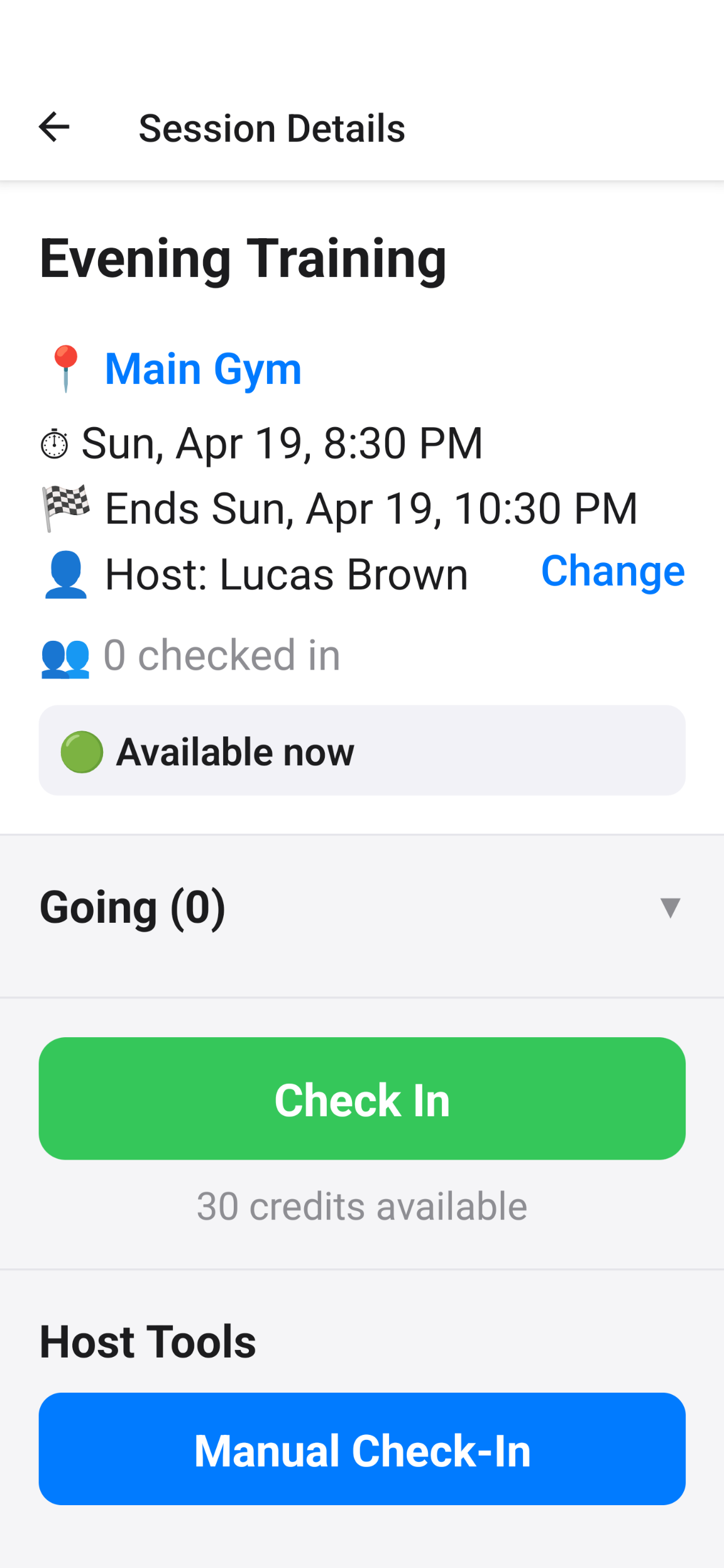
Access Manual Check-In from Host Tools.
Open Manual Check-In
Open a session and scroll to the Host Tools section to
access Manual Check-In.
- Useful for new members
- Useful for guests
- Useful for members without phones
- Useful for members who forgot their recovery code
Select people and confirm check-in.
Choose people and confirm
Select how many people to check in and confirm. Available
credits are shown before check-in.
Step 11
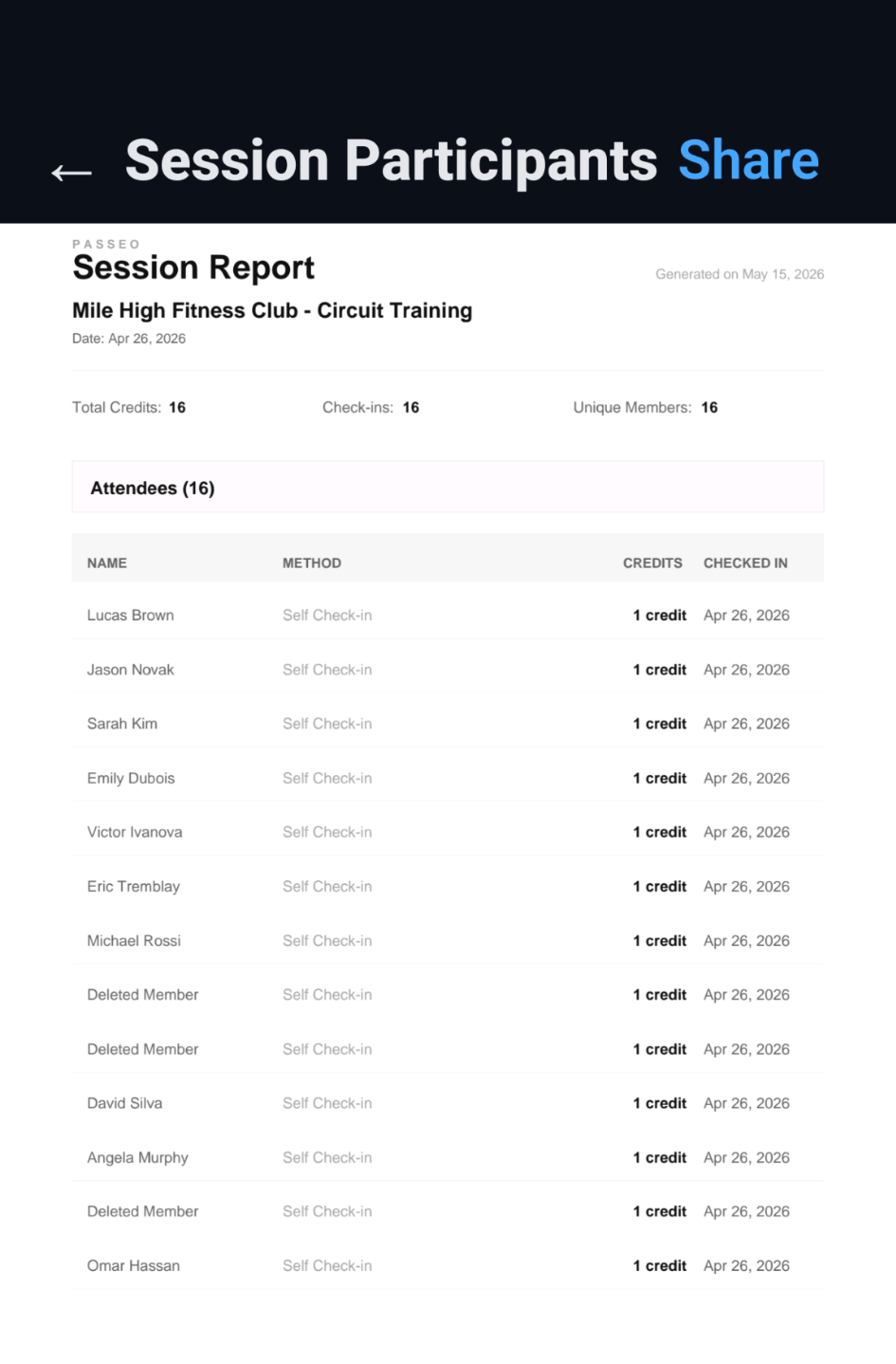
Session Reports
Track attendance and review session participation history
directly from the app.
View attendance reports
Open a completed session to review attendance history,
participation, and credits used during the session.
- View checked-in members
- Track credits and participation
- Review attendance history anytime
- Share session reports when needed
Helpful Tips
Quick tips to help you get started smoothly.
💡
Start with one session first
✏️
You can always edit sessions later
🤝
Hosts can help with check-ins during busy sessions
📱
Members who forget to check in can still be checked in
manually
📄
Most clubs transition gradually from paper cards
✅
Web Check-In is usually the easiest way to transition away
from paper punch cards.
🧭
Hosts can continue manually checking in members while members
gradually adopt Web Check-In or the Passeo app.
🔗
The Web Check-In link can be shared in WhatsApp, GroupMe,
Facebook groups, email, or text messages.
Common Questions
Answers to questions club managers often have.
Do all members need the app?
No.
Passeo supports:
- Host Check-In
- Web Check-In
- App Self Check-In
Clubs can use any combination of these methods. Installing the
app is optional.
What is a recovery code?
A recovery code uniquely identifies a member. Recovery codes
are used for Web Check-In, credit lookup, account recovery,
and restoring membership on a new device. Members should keep
their recovery code in a safe place.
Can anyone scan the QR code and check in?
No. Members must already belong to the club and have a valid
recovery code. The QR code opens the Web Check-In page, and
the recovery code identifies the member and authorizes the
check-in.
Can members check in at any time?
No. Members can only complete check-in when a session is
currently accepting check-ins. If no session is available,
attendance cannot be recorded.
Can members check their remaining credits without installing
the app?
Yes. Members can enter their recovery code on the Web Check-In
page to view their remaining credits.
Do I have to print the QR code?
No. You can print the QR code, display it on a device, or
share the Web Check-In link directly with members. All methods
work the same way.
Can I share the Web Check-In link in a group chat?
Yes. Many clubs share the link through WhatsApp, GroupMe,
Facebook groups, email, or text messages so members can access
the Web Check-In page directly.
How do members get a recovery code?
Recovery codes are generated when members are added to the
club. Club owners and hosts can view and share recovery codes
from the Manage Members screen.
What if a member loses their recovery code?
A club owner or host can retrieve the recovery code from the
Manage Members screen and share it with the member again.
What if someone forgets to check in?
Hosts or managers can manually check them in later.
Can I still use paper cards at first?
Yes. Many clubs transition gradually while learning the
system.
What if I make a mistake?
Credits and attendance can be adjusted later.
Is Passeo only for large clubs?
No. Passeo works well for both small groups and large clubs.
Ready to Start Your Club?
Create your club and run your first session in minutes.
 Clean Utility Apps